
This page explains how to manage all communications from Mercor, including unsubscribing, pausing outreach, and customizing preferences. All options are on the Communications tab of your Profile after logging in.
Where to Find It
1
Log in to your account
Go to work.mercor.com and log in.
2
Open your Profile
Select Profile in the left-hand menu.
3
Go to the Communications tab
Select the Communications tab. You’ll find all outreach-related options there. Changes save automatically.
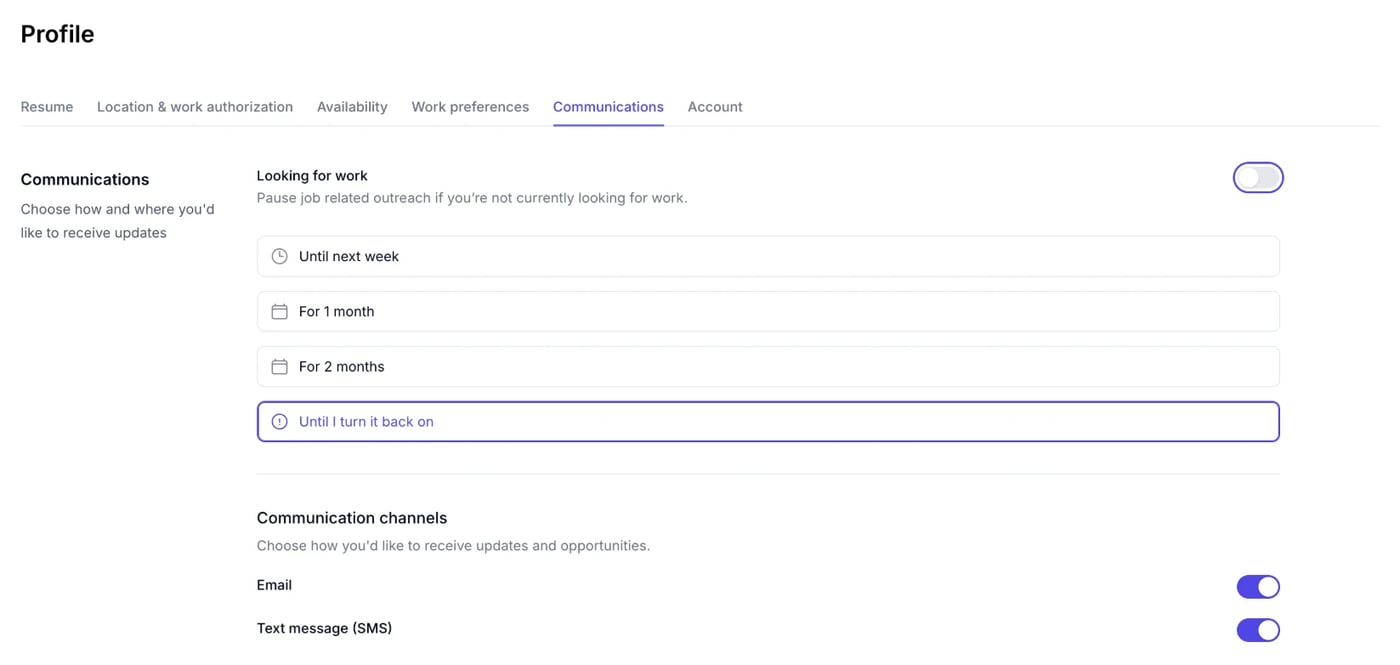
Quick Actions
Unsubscribe from All
Cease all outreach communications immediately.
Pause/Resume Outreach
Temporarily pause communication if you’re not looking for roles.
Choose Channels
Select preferred communication methods: Email and Text message (SMS).
Opportunity Preferences
Choose which types of opportunities Mercor contacts you about.
Detailed Options
General notifications
The General section of the Communications tab has two toggles besides Unsubscribe from all:- Job opportunities: notifications about new opportunities, interviews, and application invitations.
- Work-related updates: updates about offers, work trials, contracts, and project status changes.
1. Unsubscribe from All
This option deactivates all outreach activities across all channels. Use it if you are not presently seeking new opportunities.-
How to use: turn on Unsubscribe from all in the General section at the bottom of the Communications tab, then select Unsubscribe in the Pause all communications? window.
You may re-enable it at any time. Disabling all communication could also prevent you from receiving application or contract updates.

2. Looking for Work (Pause/Resume)
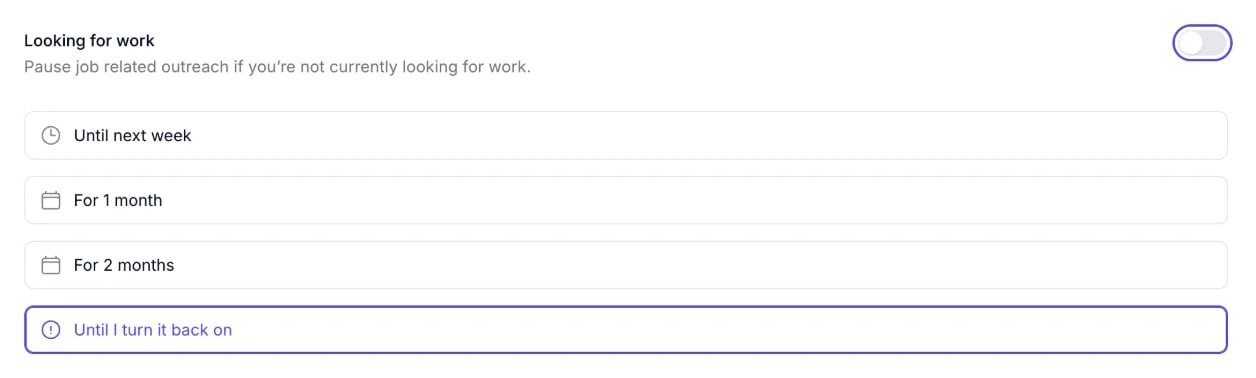
Suspend communications without modifying individual settings.- Toggle Looking for work:
- On → when job searching
- Off → when you want a break
- When you turn it off, choose how long to pause: Until next week, For 1 month, For 2 months, or Until I turn it back on.
- Ideal for travel, examinations, hectic periods, and similar circumstances.
3. Communication Channels
Regulate the platforms through which Mercor communicates with you.Receive updates and job offers via email.
SMS
Get updates directly to your phone.
- Instructions for use: Activate or deactivate each channel accordingly.
Keep at least one channel active for essential updates.

4. Opportunity Types (Targeted Outreach)
This filters roles based on your preferences so you only receive relevant listings.- Turn each toggle on or off:
- Full-time opportunities: contact me about full-time roles
- Part-time opportunities: contact me about part-time roles
- Referral opportunities: contact me about Mercor referral opportunities
- Your minimum expected pay is set separately, on the Work preferences tab of your Profile.
FAQs
I changed settings but still received messages.
I changed settings but still received messages.
Please verify which setting you adjusted, whether it pertains to unsubscribe options, channel, or opportunity type. Additionally, confirm that the channel responsible for sending the message has been deactivated.
I only want to receive emails.
I only want to receive emails.
Turn on Email and turn off Text message (SMS) under Communication Channels.
I'm receiving roles that do not match my profile.
I'm receiving roles that do not match my profile.
Review your Opportunity types toggles on the Communications tab of your Profile. Your minimum expected pay is set on the Work preferences tab.