
FAQ - Frequently Asked Questions
1) What is a Mercor AI interview?
1) What is a Mercor AI interview?
2) How do I start my official AI interview?
2) How do I start my official AI interview?
- Sign in to your Mercor dashboard.
- Proceed to the Application tab — the steps may be completed in any sequence.
- If the application necessitates an AI interview, please access the application and initiate the interview process from the step list.
- The synchronization of completed steps across applications ensures that if you have already completed the interview, it will be reflected as such.
3) Can I practice before my official interview?
3) Can I practice before my official interview?
4) Any tips for taking an AI Interview?
4) Any tips for taking an AI Interview?
- You do not need to complete the interview immediately. Choose a time that works best for you.
- Use a computer with a working camera and microphone; test both before starting.
- Ensure your full face is visible and your voice is clear throughout the interview.
- Take the interview in a quiet, distraction-free environment.
- Wearing headphones and using an external microphone is recommended.
- Interviews are conducted in English unless otherwise specified.
- Captions are enabled by default and can be turned off, but not expanded.
- Some interviews are technical and require deep discussion of prior experience; others test language or reasoning skills.
- Have pen and paper (and a calculator, if relevant) available.
- Screen sharing may be required. Only full-screen sharing is supported.
- A “hall of mirrors” effect during screen share is normal and temporary.
- If the interviewer interrupts due to a pause, you can let it know you weren’t finished.
- Some interviews include a whiteboard. Its content saves automatically and does not require submission.
5) What browsers are supported?
5) What browsers are supported?
- Recommended: Google Chrome (latest version).
- Supported: Microsoft Edge (latest version), Safari.
- Not supported: Firefox, mobile browsers.
6) How do I retake (reset) an interview?
6) How do I retake (reset) an interview?
7) How many retakes do I get?
7) How many retakes do I get?
8) What equipment and environment do I need?
8) What equipment and environment do I need?
- Ensure a quiet environment and stable internet connection.
- In the waiting room, complete the checks on the Setup checks tab and select Play test sound to test your speakers.
- Articulate clearly and succinctly; refrain from prolonged pauses (extended silences may trigger interjection by the AI).
9) How do I enable Microphone and camera access
9) How do I enable Microphone and camera access
- In Google Chrome, select the lock icon 🔒 located in the address bar.
- Under Permissions, set the Camera and Microphone settings to “Allow.”
- Please refresh the page and attempt again.
10) The AI is talking over me or not hearing me. What should I do?
10) The AI is talking over me or not hearing me. What should I do?
- Maintain brevity in responses and refrain from extended silences.
- Request the AI to repeat or clarify a question if necessary.
- If audio problems persist, exit and retake from your dashboard.
11) I lost connection / my tab froze. How do I recover?
11) I lost connection / my tab froze. How do I recover?
- Reopen the Assessments tab and attempt again.
- If the session has concluded, retake the interview from the Assessments tab: click Retake assessment on the interview card.
- To report a technical issue, email support@mercor.com with a screenshot or screen recording of the issue and the name of the interview.
12) The AI bot is not responding, what should I do?
12) The AI bot is not responding, what should I do?
- Please wait 30–60 seconds. Short delays may occur during the AI’s prompt generation process.
- Please refresh the page and rejoin the session.
- Use the appropriate browser; Chrome (latest version) is highly recommended.
- Please verify your internet connectivity, as unstable Wi-Fi or limited bandwidth may hinder the bot’s response capabilities.
- Clear cache and cookies via Chrome: go to Settings, then Privacy & Security, select ‘Clear browsing data,’ and ensure that ‘Cached images and files’ as well as ‘Cookies’ are checked.
-
Disable VPNs and extensions — Temporarily deactivate VPNs, ad blockers, and privacy extensions, as they may obstruct live AI streaming. Conduct a quick test by opening an Incognito window and attempting again.
If you are still experiencing issues, please contact support by emailing support@mercor.com. Kindly include your operating system and browser version, the interview name, along with the application, as well as any relevant screenshots or a brief description of the steps you have undertaken.
13) Where can I see my interview and application status?
13) Where can I see my interview and application status?
15) Do you use my interview to train AI models?
15) Do you use my interview to train AI models?
16) Can I use ChatGPT or other AI tools during my interview?
16) Can I use ChatGPT or other AI tools during my interview?
18) I do not see the “Retake interview” option. Why?
18) I do not see the “Retake interview” option. Why?
- Open your Assessments tab and look for Retake assessment on the interview card. It appears once the interview is completed.
- Refresh your dashboard and attempt the process again.
- If it remains unlisted, please contact support via email, providing the interview name and a brief description.
19) Can I edit or update materials after submitting an application?
19) Can I edit or update materials after submitting an application?
20) I still need help. How do I reach support?
20) I still need help. How do I reach support?
21) Can I set up an interview with a human or through any other medium instead of the AI interviewer?
21) Can I set up an interview with a human or through any other medium instead of the AI interviewer?
It ensures consistent, fair, and scalable evaluations across all applicants.At this stage, interviews cannot be conducted via chat, call, or any other medium.
22) Can I download or access a transcript of my AI interview?
22) Can I download or access a transcript of my AI interview?
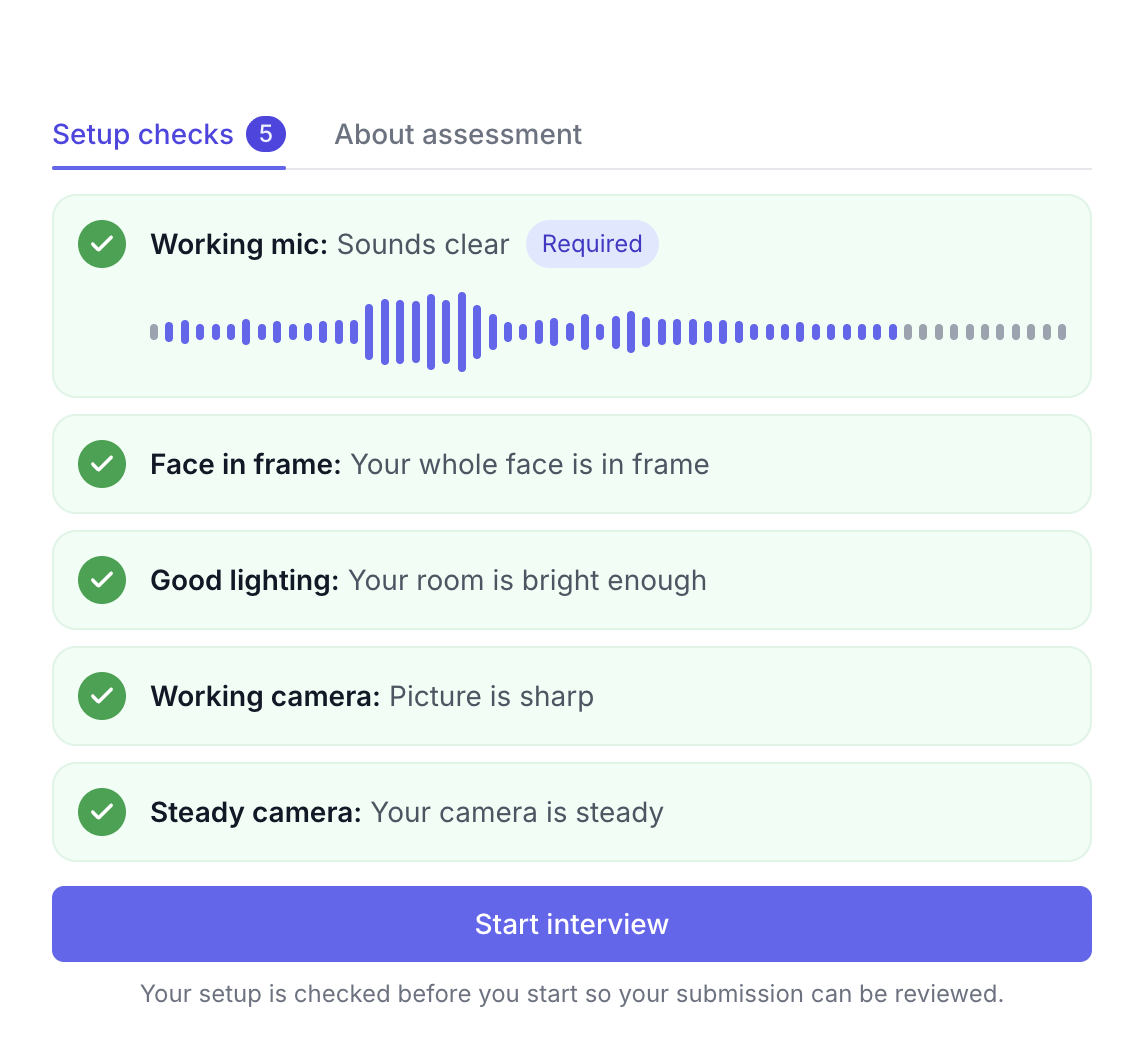
- Working mic: select Test mic and read the phrase on screen out loud.
- Screenshare: appears only for interviews that need screen sharing. Select Share your screen and share your entire screen, not a window or tab.
- Face in frame: sit so your whole face is in the picture.
- Good lighting: face a window or lamp, not away from it.
- Working camera: check that the picture is sharp. If it is blurred, wipe your lens.
- Steady camera: set your device on a desk or table.
- If it asks you to allow your camera and microphone, allow them in your browser, then select Restart devices.
- If it reports a poor network signal, check your internet connection.
- If it says your camera feed appears black, check your camera and your lighting.
- If it says screenshare is required for this interview, select Share your screen and share your entire screen.
24) How long does it take to receive a response about whether I've moved on to the next stage?
24) How long does it take to receive a response about whether I've moved on to the next stage?
25) Why does Mercor use AI when evaluating candidates?
25) Why does Mercor use AI when evaluating candidates?
- Identify top-fitting candidates globally
- Reduce time-to-match for clients and experts
- Maintain consistent, objective evaluation standards
26) I started my interview earlier, but the application is now closed. Can I still complete it?
26) I started my interview earlier, but the application is now closed. Can I still complete it?
27) My interview shows “Interview too short.” What should I do?
27) My interview shows “Interview too short.” What should I do?
- Select Retake now.
- Follow the prompts to start a new attempt.